 0
 27 November 2026, 10:30:00 am AEDT
 7 min

 0
27 November 2026, 10:30:00 am AEDT
7 min

Variances in a few clicks: workspace calculations in the Planning Analytics cube viewer
Most finance teams need a quick variance, an average or a percentage of total that isn’t built into the cube. In Planning Analytics Workspace, you can add these yourself as workspace calculations, without asking a modeller to write a rule.
A workspace calculation lives in your cube view, not in the TM1 model. It’s saved as part of the view in the Workspace content store, so it doesn’t change the cube or anyone else’s reports.
Workspace 3.1.12, released on 20 October 2026, adds a Calculation menu to the cube viewer for managing these calculations. This guide shows you how to create a calculation, manage it from the new menu, and edit it later.
You need Planning Analytics Workspace 3.1.12 or later to see the Calculation menu. Creating and editing calculations from the grid works in earlier releases too, so the steps for those apply even if you haven’t upgraded yet.
You also need to be able to save the view you’re working in. Because calculations are stored with the view, save the view each time you add or change one.
How to create a calculation
In this example, we’ll add a variance between Actual and Budget to a simple profit and loss view.
Step 1. Open your cube view
Open the view in a Workspace book or in the Modelling workbench. Put the members you want to calculate on, in this case Actual and Budget, on the rows or columns.
Click the first member, then Ctrl-click the second. If you want the calculation to apply to only one part of a nested set, for example under a single region, turn on Target selecting first, then select the members.
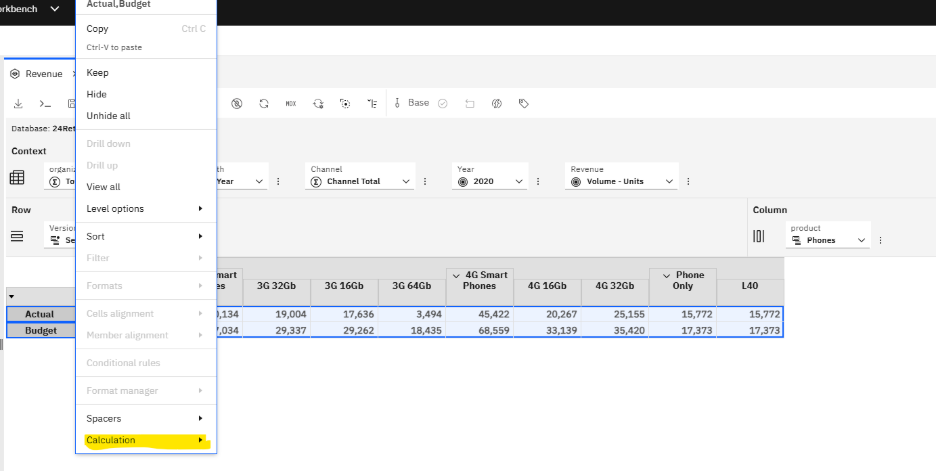
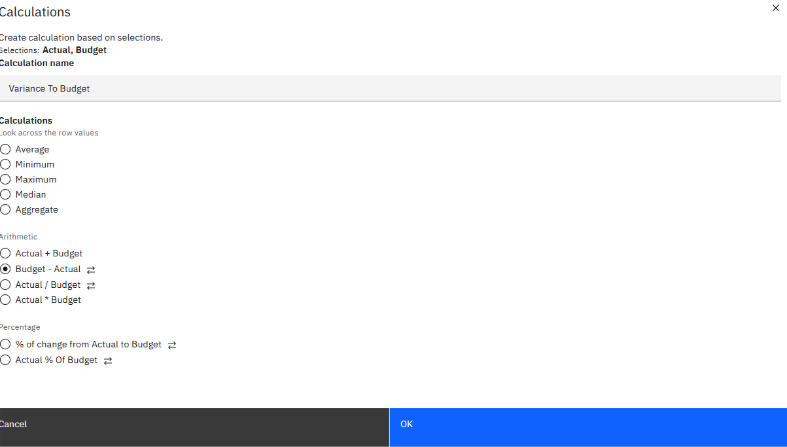
Right-click one of the selected members and choose Calculation. Give it a clear name, such as “Variance to Budget”, and pick the calculation type. The types include Average, Minimum, Aggregate, Arithmetic and Percentage. For a variance, choose Arithmetic and subtract Budget from Actual.
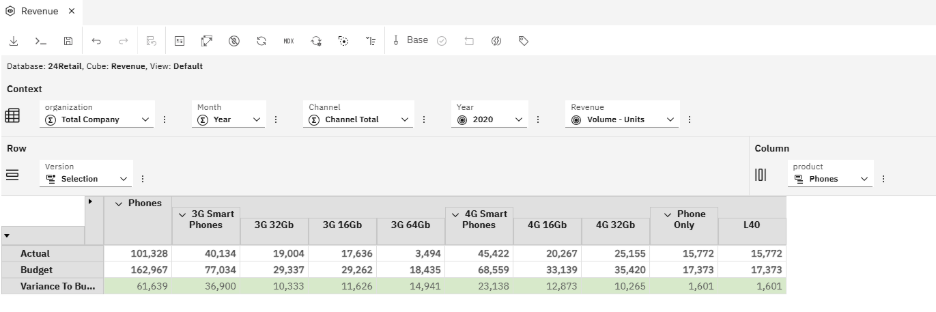
Step 4. Save the view
The new calculated member appears in the view straight away. Save the view so the calculation is kept.
Before 3.1.12, you worked on a workspace calculation by finding it in the grid and right-clicking it. In a large view with several calculations, that can mean a lot of scrolling. The new Calculation menu gives you a single place in the cube viewer to manage the workspace calculations in your view.
To use it, open your cube view and select the Calculation menu in the cube viewer. Make your changes there, then save the view to keep them.
You can still edit a calculation straight from the view, which is often quicker when you can already see it.
In the grid, right-click the calculation and choose Edit calculation.
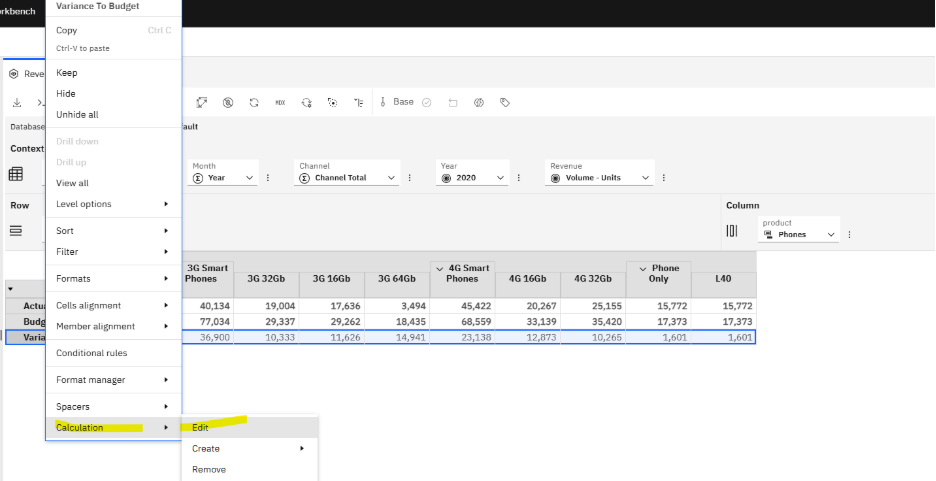
The calculation dialog opens with the current formula already filled in. Change the formula, rename the calculation if you need to, and apply the change.
Save the view to keep the change.
Name every calculation so someone else can understand it without opening it. “Variance to Budget” is far more useful than “Calc 1”, especially when you manage them from the Calculation menu.
Know when a workspace calculation is the wrong tool. Because it lives in one view, other views, reports and cubes can’t see it. If the same number is needed across many reports, used in another cube, or relied on for planning input, ask your modeller to build it into the model as a rule or a consolidation instead.
Stick to the built-in calculation tools rather than hand-written MDX. That keeps your calculations editable through the dialog and visible to the people who maintain the view after you.
If you’d like help setting up views and calculations for your team, or deciding what belongs in a view and what belongs in the model, talk to Octane. We help Planning Analytics customers across Australia and New Zealand get more out of every release. Book a call now!

Sasidaran has 10 years of experience in Information Technology industry. He has worked as a developer to build Data warehouses across multiple industries. During this time, Sasidaran has had exposure to numerous Data warehouse tools like Informatica, Cognos BI, Business Objects and database tools like Oracle and SQL Server.
 print


Leave a comment